01 / INTRODUCTION
A familiar library.
A new conversation.
A good study question usually begins somewhere specific: a paragraph in your textbook, a page of class notes, or an idea from a lecture. The material matters as much as the question.
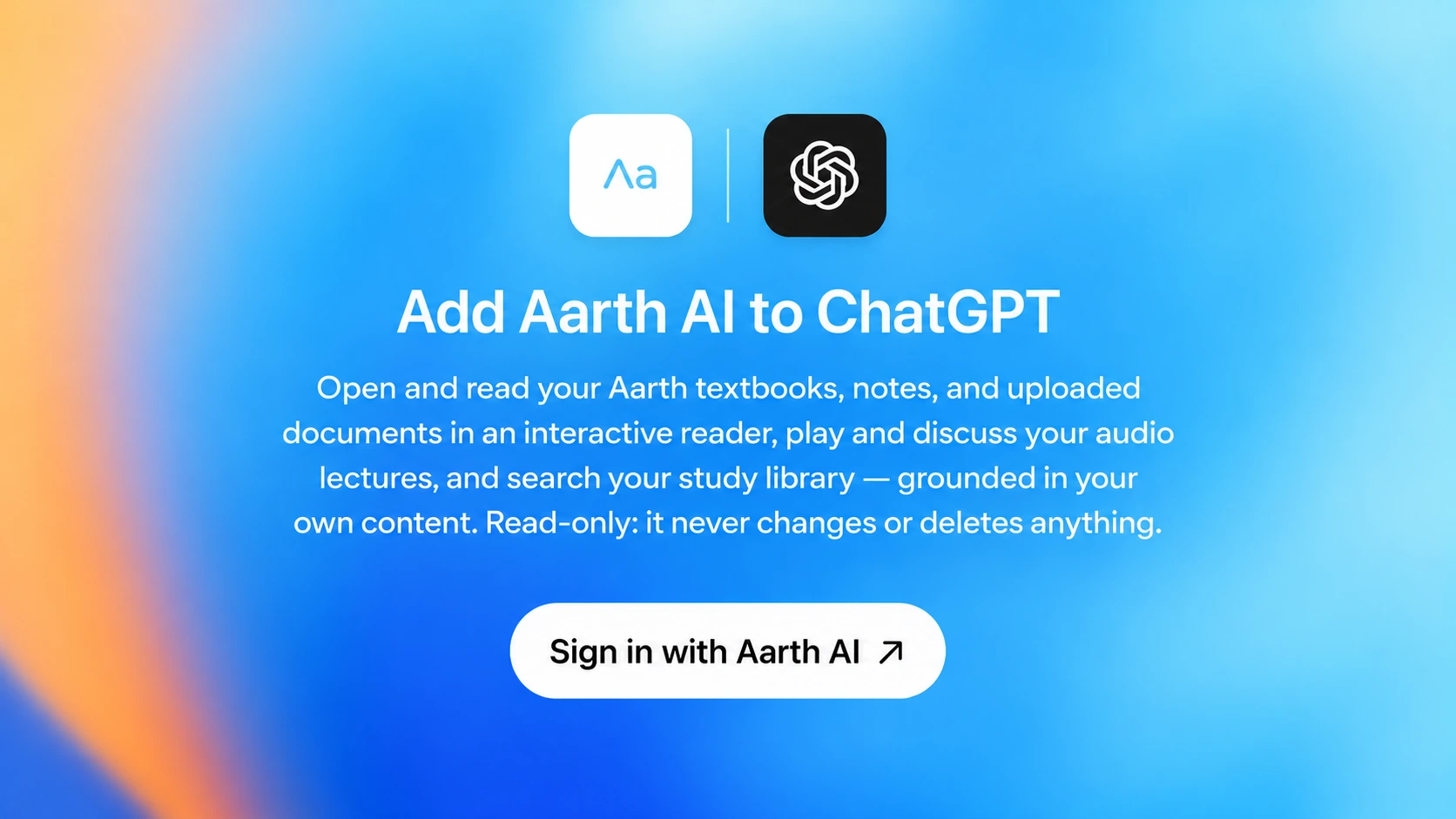
With Aarth AI for ChatGPT, you can connect your Aarth account and bring that academic context into ChatGPT. Find the material in your library, open it, and keep asking questions as you work toward understanding.
Your learning journey still begins in Aarth. Add or access your study material there, then connect your account to explore it through ChatGPT.
02 / YOUR STUDY MATERIAL
More context.
More to work with.
Bring the material you already have access to in Aarth into a conversation you can build on.
Your textbooks
Find a saved textbook, open a chapter in the reader, and ask about the idea you want to understand.
Your notes
Bring your Aarth notes into the conversation. Revisit a definition, connect ideas, or ask for another explanation.
Your documents
Open uploaded study material and explore it through questions grounded in that document.
Your audio lectures
Find and play a lecture from your library, then discuss its available transcript and context.
Open a chapter, ask for a simpler explanation, and follow up on an unfamiliar term. Or return to your notes and ask how two ideas connect. You choose the material and the direction of the conversation.
03 / GETTING STARTED
From your library
to your first question.
You’ll need your Aarth account and access to the plugin in ChatGPT. Keep some study material in your Aarth library so you have a place to begin.
- 1
Start with your Aarth library
Sign in to Aarth. Add or access the textbooks, notes, documents, or audio lectures you want to study.
- 2
Open Aarth in ChatGPT
Visit the Aarth AI plugin listing and choose the install option available in your account.
- 3
Connect your Aarth account
When prompted, sign in with the account that contains your study material. Review the requested permissions and approve the connection.
- 4
Start a new conversation
Ask ChatGPT to use Aarth to find or open something in your library. Choose your material, then ask what you want to understand.
Connection screens can vary by account. See OpenAI’s plugin guide for the current installation flow.
04 / YOUR FIRST CONVERSATION
Start here.
See where curiosity takes you.
After connecting Aarth, try one of these prompts. Change the subject or textbook to match what’s in your library.
Show me the textbooks in my Aarth library.
Open my English textbook and help me understand the first chapter.
Find my notes on photosynthesis and explain the main ideas using those notes.
Show my Aarth audio lectures. I want to play one and discuss it.
Once a source is open, continue naturally: “Explain that more simply,” “Give me an example,” or “Help me connect this with the previous section.”
05 / ACCESS & CONTROL
Your content.
Your access.
The connection works with the Aarth content your account is authorized to access. It gives you another way to explore your library.
A read-only connection
The current connector can retrieve and display existing material. It cannot edit, upload, or delete files in your Aarth library.
You can revoke Aarth access from Settings → Connected apps in Aarth and disconnect the integration in ChatGPT’s connection settings. Review the permissions shown when you connect and the privacy policies of both services.
AI explanations can make mistakes. Use your source material and educator guidance to check important details.
06 / A FEW DETAILS
Good to know.
Do I need an Aarth account first?
Yes. The connection uses your Aarth account and the material available in your library. Start in Aarth, add or access the study material you need, then connect that account to ChatGPT.
Will this add every textbook to ChatGPT?
The integration gives ChatGPT access to the Aarth material you are authorized to use. Connecting your account does not unlock every textbook or give access to another student’s library.
Can ChatGPT change my Aarth notes or files?
The current connector is read-only. It can find, open, and retrieve your existing material, but it does not edit, upload, or delete content in Aarth. Manage your library in the Aarth app.
What if I cannot connect or find my material?
Check the plugin listing for availability in your ChatGPT account or workspace. Make sure you connected the same Aarth account that holds your material. If the connection has expired, disconnect and reconnect it. Contact Aarth if you still need help.
Have another question? Talk to the Aarth team
Your next question
has a place to begin.
Connect your Aarth account and explore the material that matters to you.
Open Aarth in ChatGPTNew to Aarth? Start with your library